
1. Position the camera
Mount or place the camera so the full board fills most of the frame, as square-on as the room allows.
SETUP INSTRUCTIONS
A whiteboard, blackboard or glass board, a camera that can see all of it, a computer or STBox, and a normal internet connection.
Read morePosition the camera, connect it, drag the corners of the board in the preview and start sharing. The same four steps repeat in every room.
Read moreNo smart board, no new wall, no per-teacher device. Existing USB webcams and installed PTZ cameras both work.
Read moreStraight-on beats a steep angle, but moderate angles are corrected automatically. Keep the whole board in frame with a small margin, avoid mounting directly under a bright downlight, and prefer a fixed mount over a tripod in shared rooms. For very long boards, use a wider lens or cover the wall with two cameras.
Ask us about your room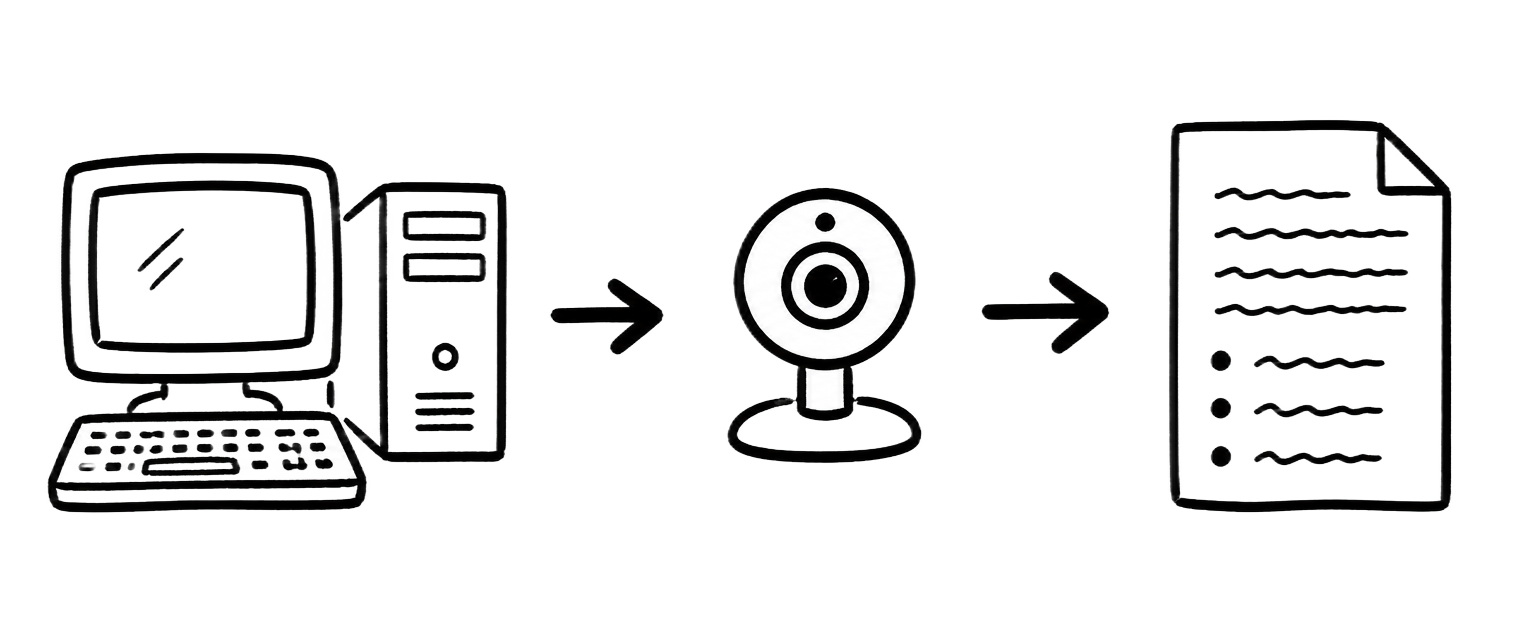
Small rooms are usually fine with a good USB webcam on a wall mount. Classrooms work best with a wide-angle USB camera or a fixed PTZ opposite the board. Lecture halls call for a PTZ with optical zoom, or STBox driving the camera that is already installed.
See STBox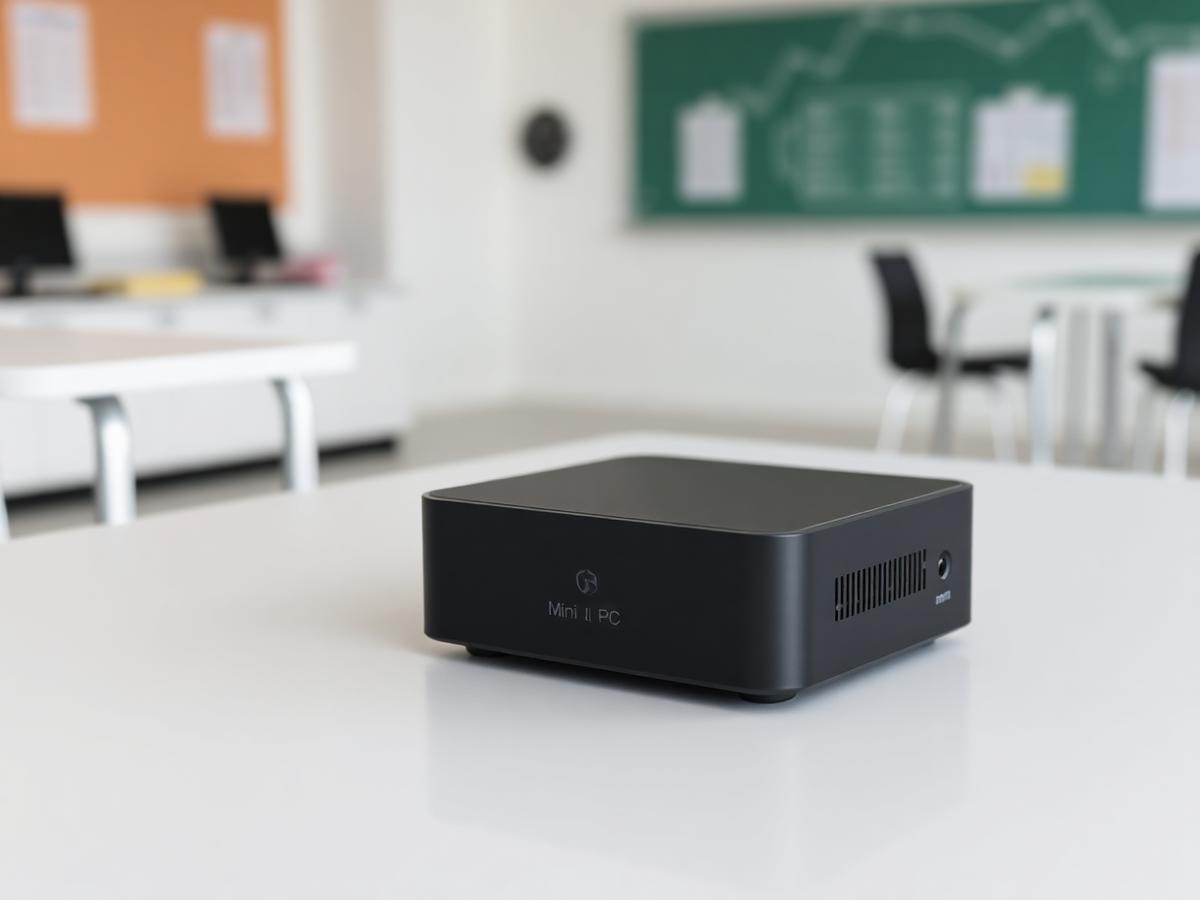
Mount or place the camera so the full board fills most of the frame, as square-on as the room allows.
Plug the camera into the room computer over USB, or connect your PTZ camera to STBox.
Open ShareTheBoard, pick the camera and drag the corners of the board in the preview.
Start the session and hand out the link, or select ShareTheBoard as the camera in your call.
Straight-on is best, but moderate angles are corrected automatically.
Keep the whole board in frame with a small margin around the edges.
Avoid mounting directly under a bright downlight to reduce glare.
A good USB webcam on a wall mount is enough for boards up to about two metres.
A wide-angle USB camera or a fixed PTZ mounted opposite the board.
A PTZ camera with optical zoom, or STBox driving an existing installed camera.
Increase room lighting or clean the board before starting the session.
Re-drag the board area in the preview so all four corners match the board.
Close other apps holding the camera, then reload ShareTheBoard.
Check the upload bandwidth available in the room.
Move the camera slightly off the reflection axis.
Contact us with a screenshot of the preview and we will help.
Watch a 5-minute demo now, or book a 30-minute live walkthrough.
Get the PDF with specs and use cases for your segment.